

Getting Started
Simulator setup & gameplay instructions
About Golf simulator technology
When you arrive
Go straight to your bay and check-in on the Fareway Golf app. If you need anything staff are there to help. Simulator instructions are below:
Weekly Quick Reference
-
Standard Tees: White
Forward Tees: Red
Format: Check your league format
-
Check your Fareway Golf app for the sim course. It will be in score entry for the session.
Otherwise, confirm with staff.
-
The following attributes are to be selected:
Standard Tees: White
Forward Tees: Red
Scoring: Stroke
Pin: Intermediate
Holes: Front 9 or 18 depending on league format
Weather: Calm
Ground: Normal
Sky: Clear
Green Stimp: 8.5
Wind Direction: Leave as Default
-
The following attributes must be chosen for each player:
Wind Speed: Calm
Time: Afternoon
Gimme: 6 FT
Auto Continue: 1 Second
Auto Gimme: 1 Stroke
Mulligans: Yes (*Mulligans are not allowed in this tournament. They are only to be used for glitches with the simulator)
Auto Drop: No
Auto Concede: Double Bogey
No-Putt Mode: OFF
Full Setup Instructions
1
Warming up
When you arrive feel free to get warmed up on the range.
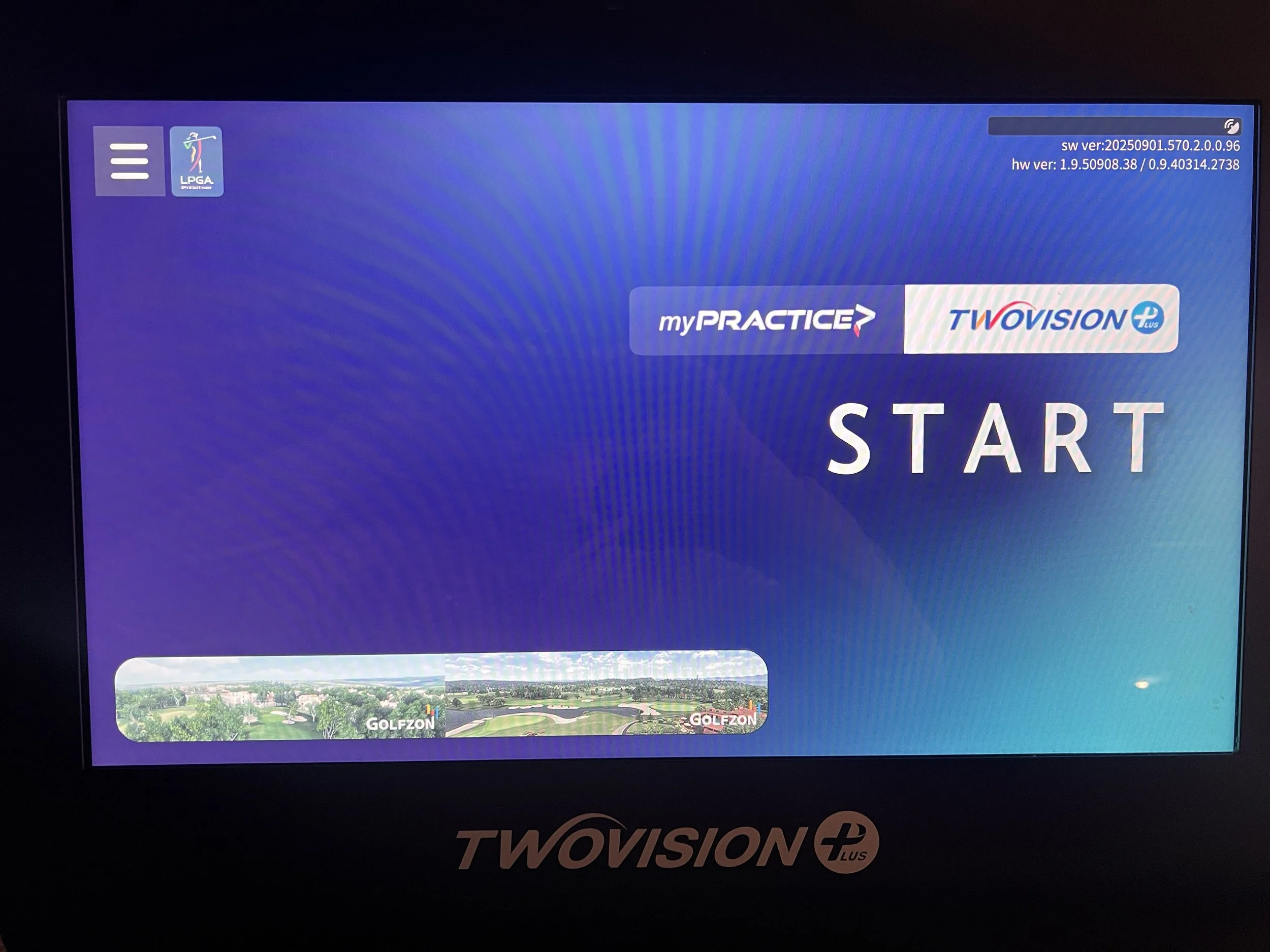
Select “Start” on the home screen.
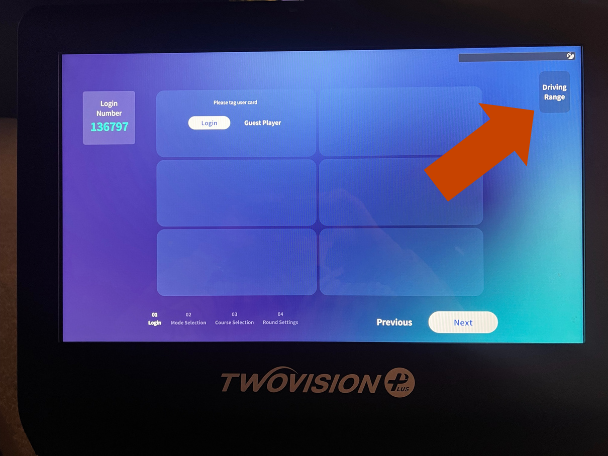
Select the “Driving Range” button on the top right.
2
Exit the practice range and add players
To return to the home screen, select the “power” icon on the top right to go home.
Power Button Icon

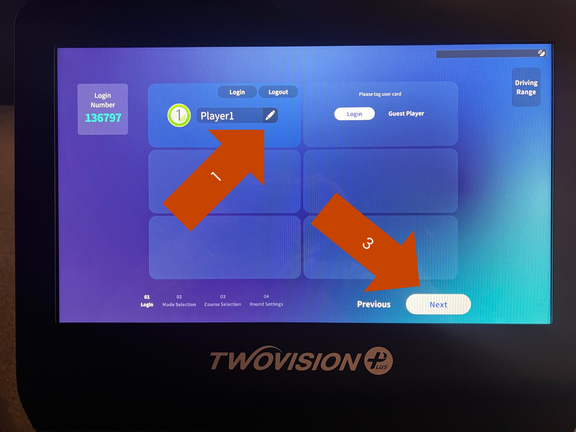
From the home screen select “Guest Player” if you don’t have a GolfZon account.
(1) Enter Player 1 Name by selecting the Pencil icon.
(2) Repeat step 1 for additional players.
(3) Select “Next” on the bottom of the screen to continue.

3
Select Game Type
On the next screen select the Game Type:
Select Scramble or Stroke (for Best Ball)
Select “Next” on the bottom of the screen to continue
Confirm both players are on the same team and Game Rule is “Scramble” while Score Rule is “Stroke”
Select OK to continue.


4
Select course
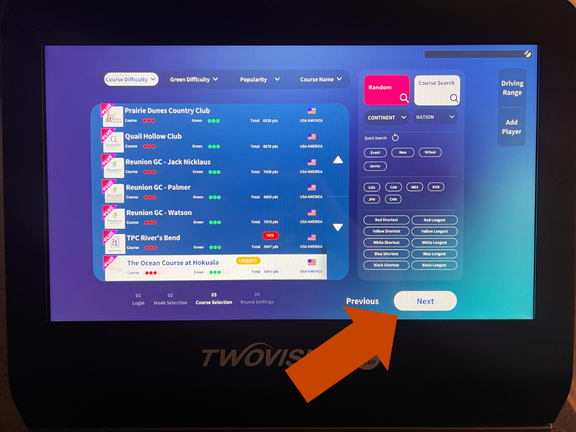
On the course selection screen:
Scroll or search for a golf course
Select the correct golf course for the event you are playing:
*Check the Quick Reference section at the top of this page for the weekly course
Select “Next” on the bottom of the screen to continue.
5
Configure game settings
On the next screen, configure all the settings to match the below list as closely as possible:
Game Difficulty: Semi-Tour Mode
Round Mode: Scramble Stroke
Wind: Weak
Green Position: Random
Pin Location: Middle
Green Speed: Slow
Green Firmness: Firm
Putting Grid: Bold
Continuous Putting: Your Choice (On means each player putts until in the hole or in concede range)
Distance: Yard
Green Distance: Feet
Speed: MPH
Select the arrow on the right side of the screen to continue.

*Simulator screens may vary slightly. Match settings as closely as possible.
6
Configure player settings
On the next screen, configure all the settings to match the below list as closely as possible for all players.
If there are specific settings for a single player, make sure you select their name and configure their settings separately:
Difficulty: Pro
Concede: 6.00 ft
Mulligan: 5 (*mulligans are not allowed in this tournament. They are only to be used for glitches with the simulator. Mulligans taken are displayed on the final scorecard and will be audited.)
Swing Plate: Normal
Tee Height: Your Choice
Tee Box: White or Red
White is standard tee
Red is forward tee (configure for specific players that will use Red tee)
Tee Box Location: Your Choice
Right handed players = Right
Left handed players = Left
Pin Flag: Your Choice
Select “Start Round” to being play!

*Simulator screens may vary slightly. Match settings as closely as possible.
When you complete your round:
Review and submit your official scorecard in the Fareway Golf App
Take a picture of your scorecard on the simulator screen and text it to (612) 208-6768 OR email it to hello@fareway.golf
(A scorecard submitted without a scorecard image will not be considered eligible for prizes)